Website Widgets
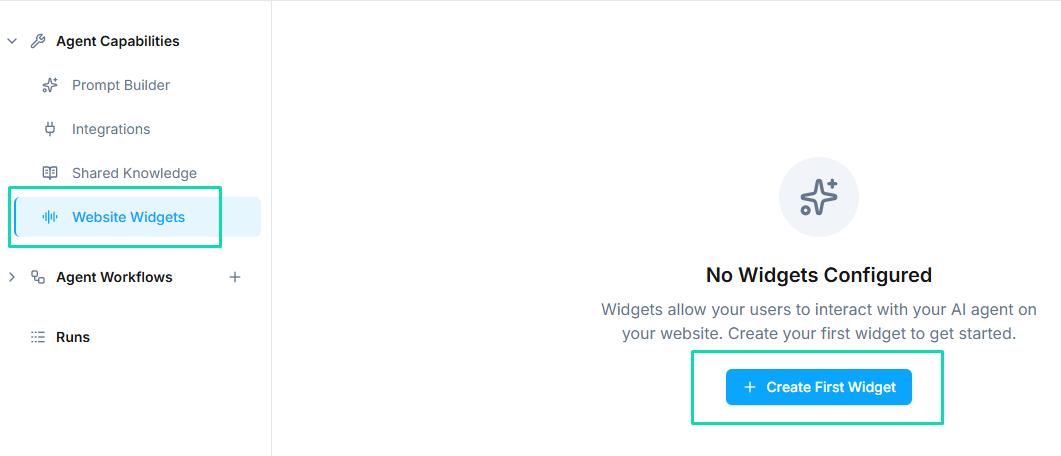
Website widgets let you embed your AI agent directly on your website. Visitors can start a voice or text conversation with your agent without leaving the page -- no app downloads or phone calls required.
Widget Types
offers three widget styles to match your website design:
Chat + Voice
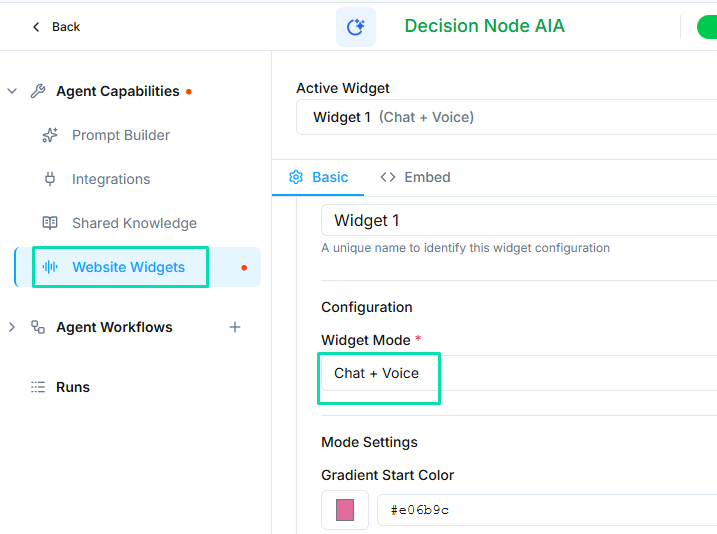
A full conversation interface that supports both text chat and voice interaction. Visitors can type messages or click to start a voice call with your agent. This is the most feature-rich option and works well as a primary support or sales channel on your site.
Button Only
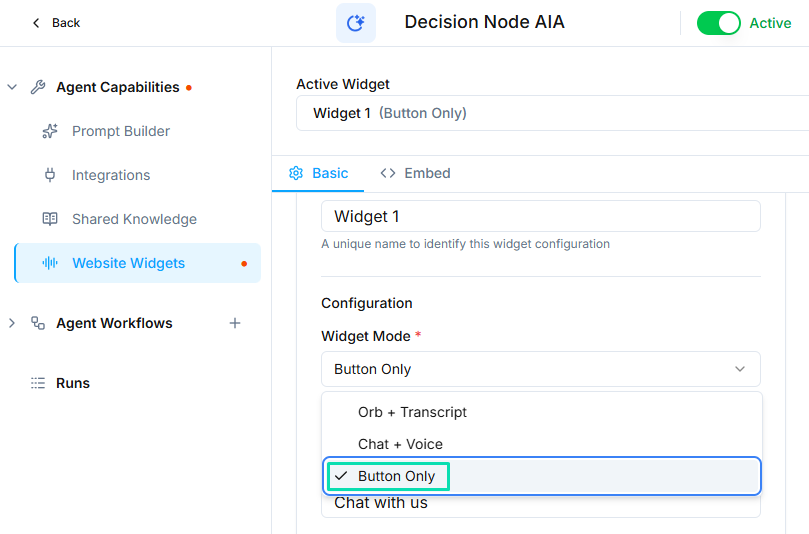
A simple button that visitors click to start a conversation. The button can be labeled with custom text (e.g., "Talk to Us" or "Get Help"). When clicked, it opens the conversation interface. This option is clean and unobtrusive.
Orb
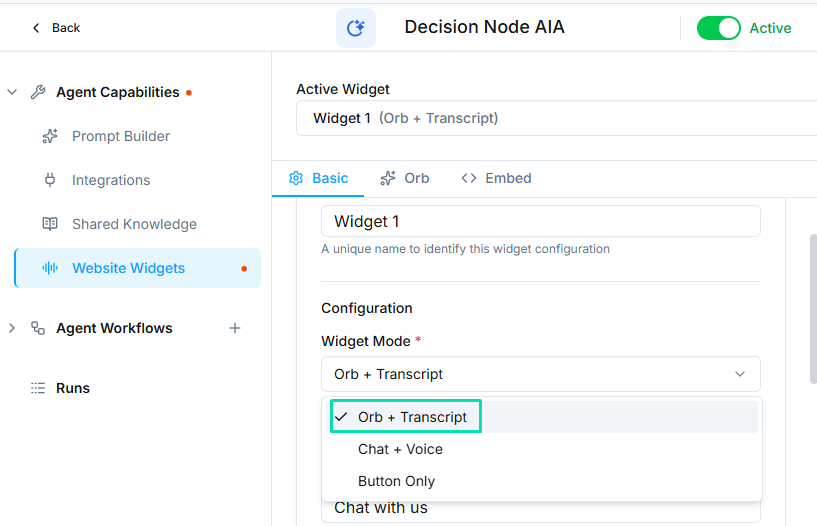
A floating animated circle that sits in the corner of your website. The orb draws attention with subtle animation and expands into the conversation interface when clicked. This is a good option for keeping the widget visible without taking up screen space.
Customization
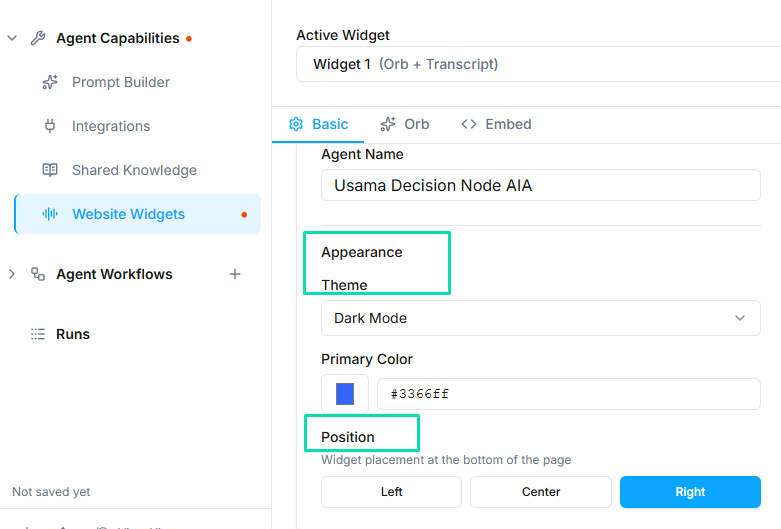
Each widget can be customized to match your brand:
- Colors -- set primary and background colors to align with your website's design
- Position -- choose where the widget appears on the page (bottom-right, bottom-left, etc.)
- Branding -- add your logo or company name to the widget header
Embedding on Your Website
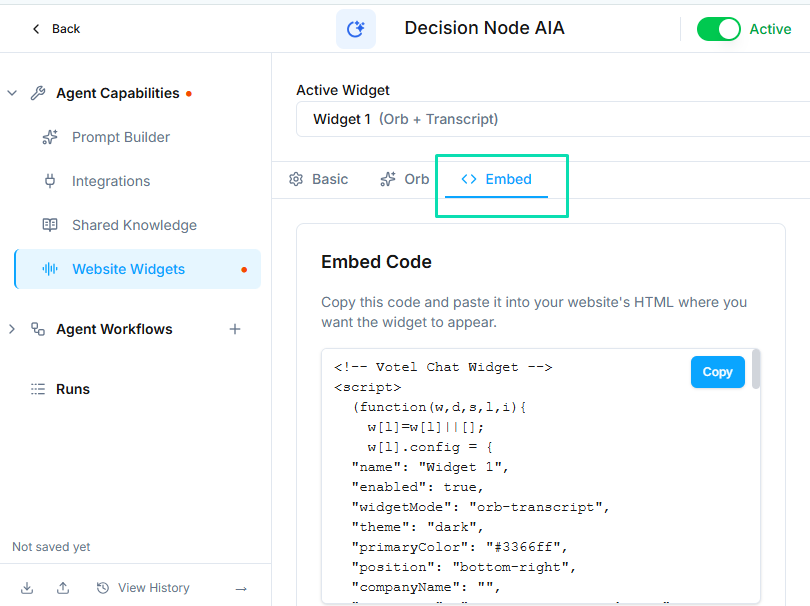
Adding a widget to your site takes three steps:
- Configure the widget in the agent builder (type, colors, position)
- Copy the generated embed code snippet
- Paste the snippet into your website's HTML, typically just before the closing
</body>tag
The snippet works on any website -- static HTML, WordPress, Shopify, Webflow, Squarespace, or custom-built sites. No special plugins or dependencies are required.
How Widgets Connect to Workflows
When a visitor starts a conversation through a widget, the agent uses the Conversation Started trigger to begin the interaction.
- If the agent has a workflow assigned with a "Conversation Started" trigger, the workflow runs and guides the conversation
- If no workflow is set, the agent's system prompt handles the conversation directly
This gives you flexibility: use workflows for structured, multi-step interactions, or rely on the system prompt for open-ended conversations.
Abuse Protection
Every conversation a widget starts runs your agent, and every conversation is billed. To stop bots and scripts from starting conversations on your site, open the widget settings in the agent builder and go to the Protection tab. The settings apply to every widget of the agent. They are checked on our server before a conversation starts, so nobody can turn them off by editing the embed code. Everything is off until you turn it on.
- Blocked IP addresses -- visitors from these addresses can never start a conversation. Enter one address (
203.0.113.7) or one range (198.51.100.0/24,2001:db8::/32) per line. IPv4 and IPv6 both work. - Allowed IP addresses only -- when this list is filled in, only visitors from these addresses can start a conversation. Leave it empty to allow everyone.
- Limit sessions per visitor -- at most a number of sessions per visitor in a number of minutes. Visitors are counted by IP address and by browser. Every conversation the widget starts or continues on another page counts as one session, and the count resets when the time is up.
- Human check (Cloudflare Turnstile) -- visitors complete a quick check before their first conversation starts. The conversation continues on other pages of your site without asking again.
A visitor who is stopped sees a short message in the widget, such as "This assistant is not available from your network." Each stop also appears in Activity > Web Sessions with its reason.
Multiple Widgets
You can create multiple widgets for the same agent. This is useful when:
- Different pages need different widget styles (e.g., a chat widget on the support page and an orb on the homepage)
- You want to test which widget type gets more engagement
- Different sections of your site require different conversation entry points
Next Steps
- Workflows -- build the logic that powers widget conversations
- Conversation Node -- control how the agent handles widget-initiated conversations